

This article showcases a relatively simple custom SAPUI5 mobile app created by iProCon, called „Where Is My Team?“: allowing a Manager to get an overview of what their team on their mobile phone is doing at any particular time and contacting them with a tap on the screen.
The motivation for this SAP MSS mobile app is straight forward: to keep a team manager up-to-date on what his team is doing, presenting the information from SAP HCM in a concise and user-friendly manner and allowing him to contact each team member with a tap on the screen.
Another motivation behind the design of this app is to make it relatively „future-proof“ in design: confining changes to the back-end data retrieval functions. All data can be retrieved by a Function Module or Class, which can be made to read the customer’s configuration, thus minimising code change in the front-facing SAP UI5 app.
So let’s walk through this app as you would use it.
UI5 Logon & Security
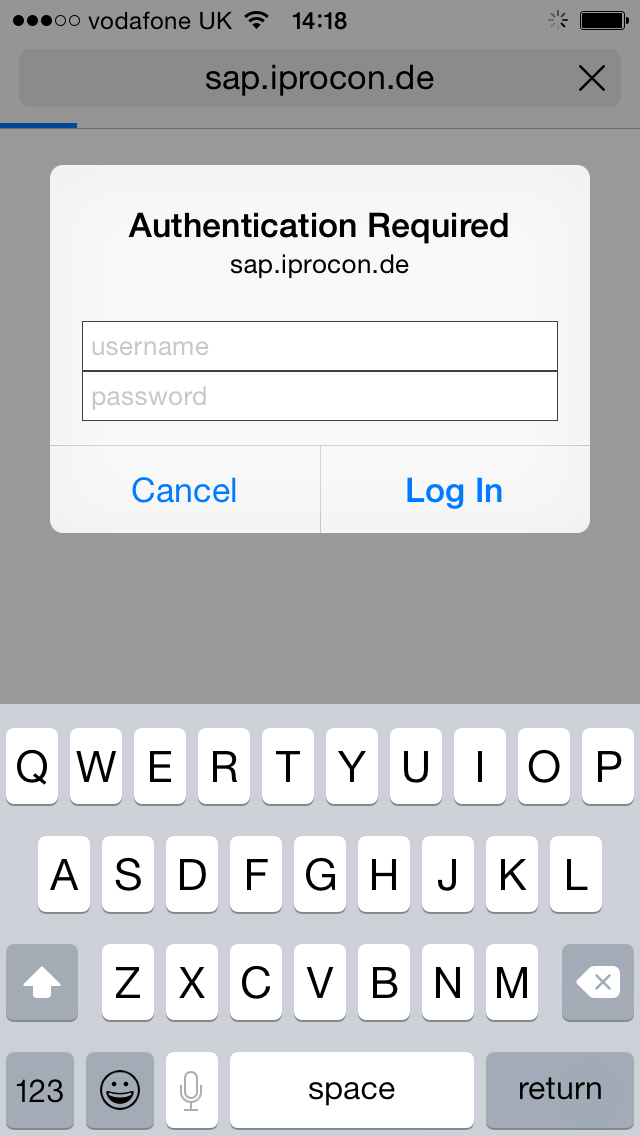
You are prompted to log in using your SAP username and password. Authentication is handled automatically by the SAP NetWeaver Gateway, ensuring that only authorised access is permitted. If this is not secure enough for your company, it is also possible to implement two-factor or multi-factor authentication via NetWeaver Gateway.
Your Team on a SAP mobile app

The mobile team view shows the members of your team based on data from Orgmanagement as well as a list of activities or other important events associated with them. All data is retrieved from the back-end on-premise SAP HCM system via OData; this means that any changes to the configuration or data retrieved may be restricted to the back-end, if necessary. This can include:
- Clock In/Clock Out times: see what times your team members clocked in and out of work that day.
- Illnesses, holidays and other absences from infotype 2001
- Attendences from infotype 2002
- Trips from SAP Travelmanagement
- Trainings from the Learning Solution
- Standard weekly schedule
- A birthday notification
- etc.
As you can change the selection date via the date field at the top of the page, you see past activities as well as future-dated activities that have already been saved in SAP HCM.
Tapping on the line of one of your Individual Members will also take you to a screen showing that member’s individual details.
Individual Employee View on mobile MSS
Here we have chosen to display several pertinent details from the SAP HCM backend system for an individual team member, including:
- Personnel Number;
- E-mail (tapping on this will start a new e-mail to the team member’s address);
- Mobile Number (tapping on this will start a new call);
- Organisational Unit;
- Position;
- Activities.
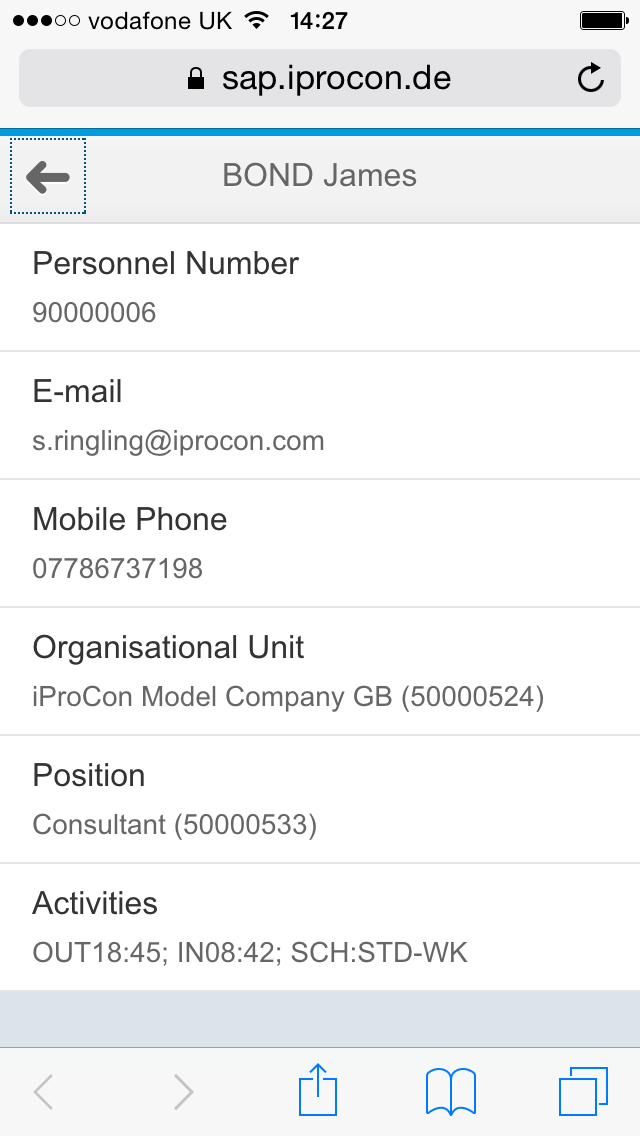
Further data can be added as per custom requirements, e.g.:
- Landline office number
- Home number
- Emergency contact
- WBS elements or projects from PS the employee is responsible for or worked on today
- etc.
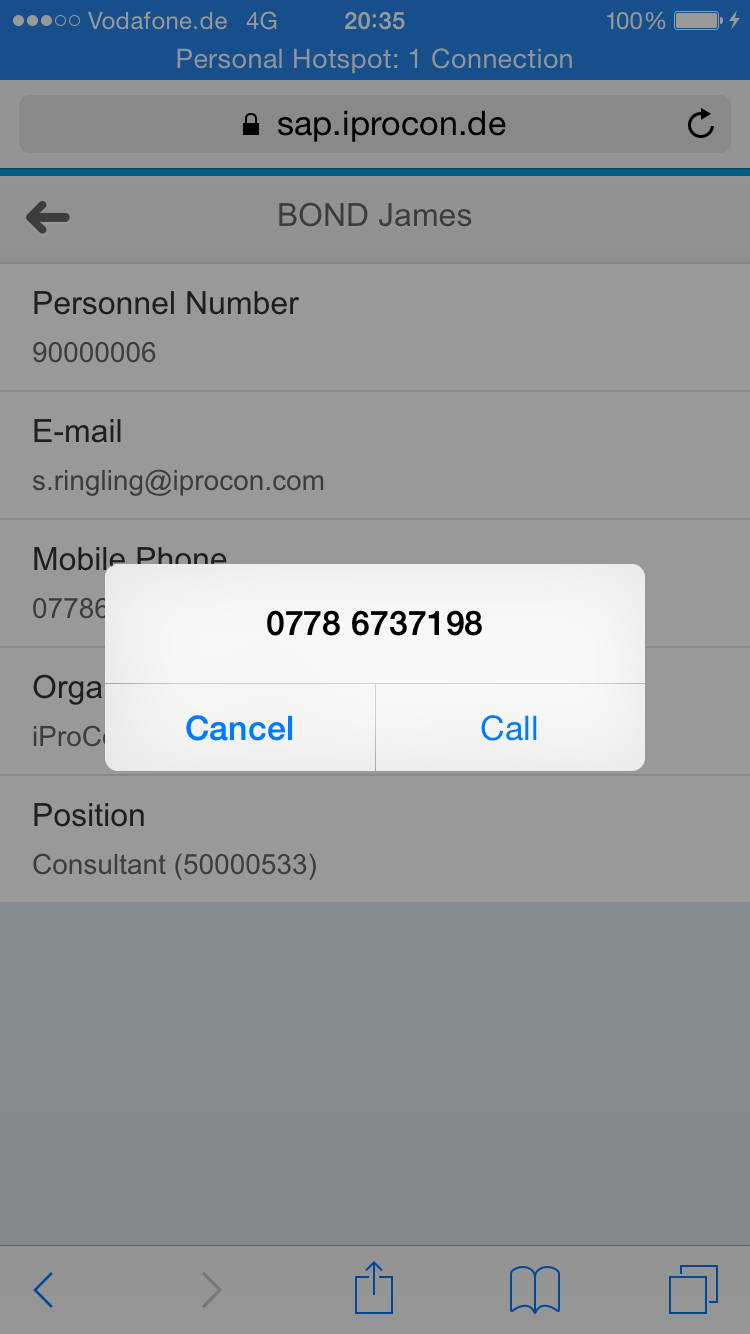
Email address and mobile number are responsive to tapping, so, as a manager you can:
- spot an available team member quickly on your MSS mobile app
- tap once for the details
- tap once more to call them.
Overall Design Points
The design behind this app is aimed to be quite simple – only displaying information, and based on the output of function modules in the back-end that can be easily amended going forward. This makes the app flexible and allows for it to be extended in numerous ways – or example, other data views or items could be added. These could then link to further views with other functionality – for example, you could create an item that tells the Manager how many hours that person has assigned to their Timesheet that day; tapping on that line item would take the manager to a view where he can approve or reject those daily hours.
Want One?
Get in touch via our call back page to discuss whether we can design and implement the right MSS or ESS app for you, making use of the existing template as much as possible.

