

Ease of access to information is key. Searching is a key functionality and the right data should be available quickly. In SuccessFactors Learning the search capability plays an important role in overall usability. This blog will help to improve the search response time in fetching LMS data faster and more easily.
The unofficial three click rule is a web design rule suggesting that a user of a website should be able to find any information with no more than three mouse clicks. Whilst you may not always be able to achieve this in SuccessFactors solutions, you should always aim at the best possible usability.
Standard Search Behaviour
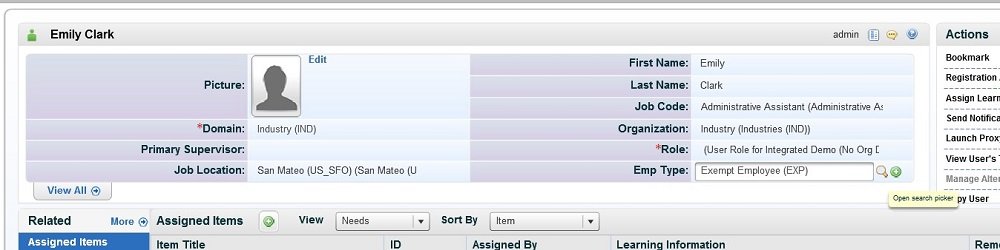
Sample Scenario: To find the list of values of the Employee Type field („Emp Type“) in a user record you need three clicks as below:
-
Access User Record -> Employee Type field has search picker to choose value
-
Click on the search picker icon
-
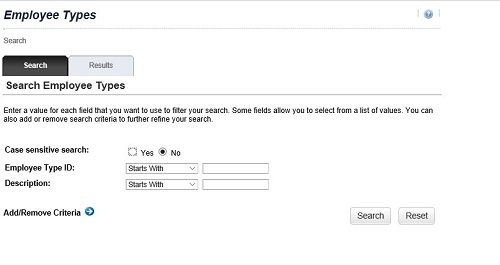
Click on the search button to see values
-
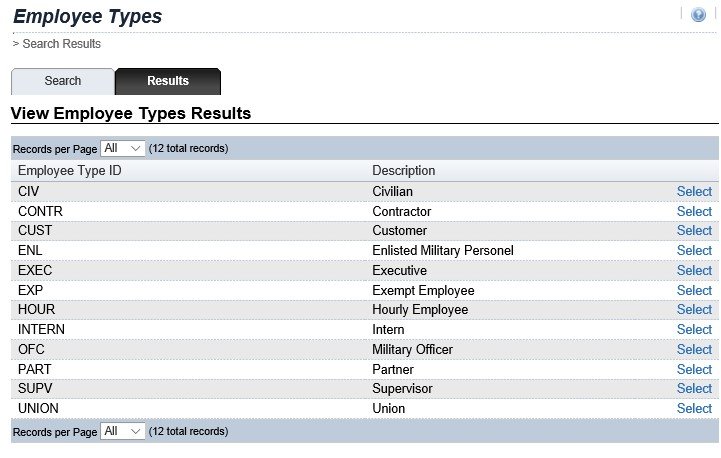
Click to select value
This standard behaviour may be useful, if you have a huge number of values to search through, so you want to add extra search criteria in step 2. However, if yu just want a list of all available values, this is inconvenient and slow. I’ll now show you the configuration required to change this and reduce the number of steps.
LMS Configuration Change
Search Selectors control the default behaviour of searches in SuccessFactors LMS including searches for records, filters on entity searches and filters on report criteria.
-
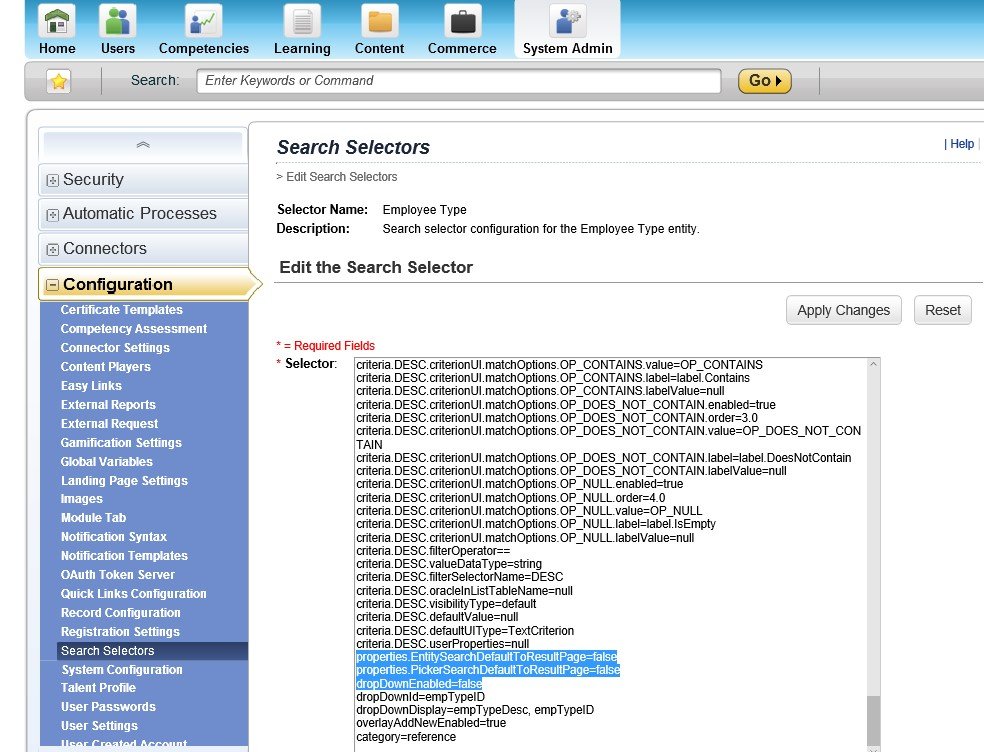
Login as LMS Admin -> System Admin ->Configuration -> Search Selectors -> Navigate to field Employee Type (as highlighted below)

-
Click on the edit button and at the bottom of the code find the following lines
- properties.EntitySearchDefaultToResultPage=false
- properties.PickerSearchDefaultToResultPage=false
- dropDownEnabled=false
-
Change the code as below and click on Apply Changes to activate a direct drop down list:
- properties.EntitySearchDefaultToResultPage=true
- properties.PickerSearchDefaultToResultPage=true
- dropDownEnabled=true
Result: Improved Search Behaviour in SuccessFactors LMS
Now accessing the Employee Type field values in the User Record will be achieved by one click as shown below:
-
Access User Record -> Emp Type field > Click on drop down arrow
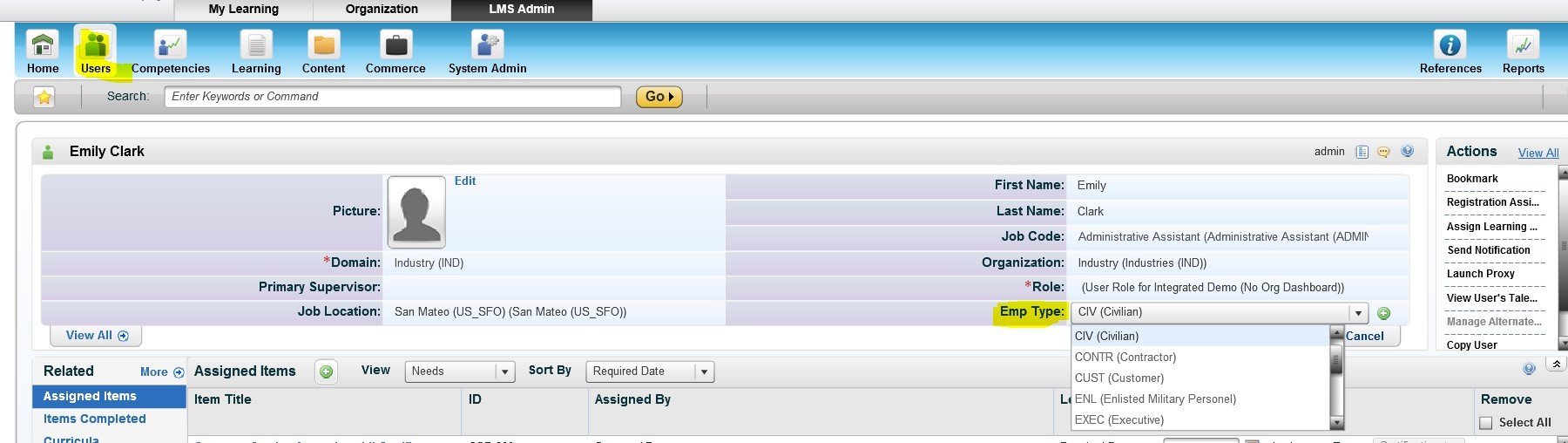
This tip especially helpful, if the field has less than 10 values to choose from.
-


Excellent Article !
Good Information on Search….